

Problem
The Xhorse Dolphin II XP005L key cutting machine fails to complete a firmware update. The device displays the following messages:
-
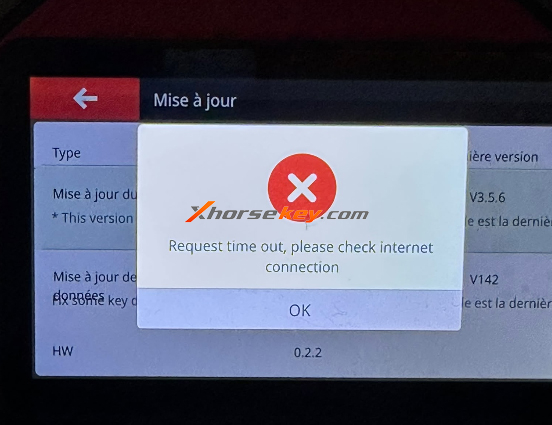
“Request time out. Please check internet connection.”
-
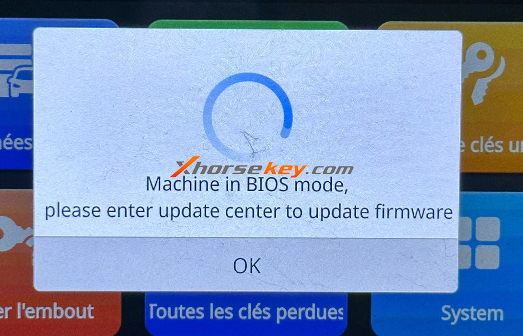
“Machine in BIOS mode, please enter update center to update firmware.”’
Solution
Follow the steps below to complete the firmware update. The key point is to update the firmware once with the green battery cable disconnected, then reconnect the cable and run the update one more time.
Step 1: Change the Network Connection
Change the network connection used by the XP005L, then try the firmware update again.
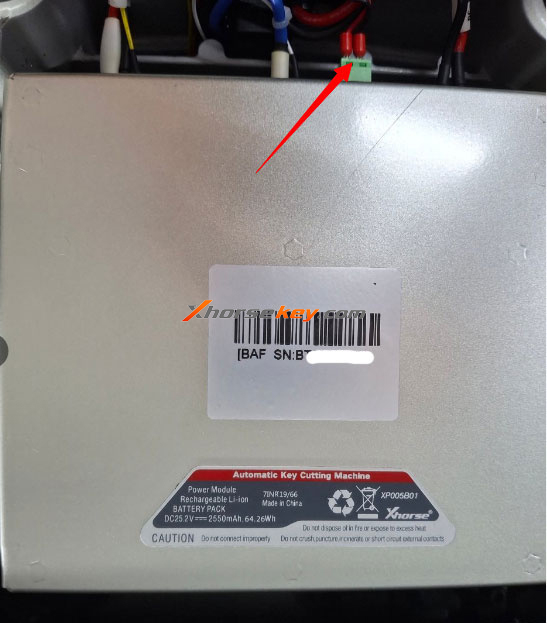
Step 2: Disconnect the Green Battery Cable
Disconnect the green cable from the battery, as indicated by the red arrow in the image.
Step 3: Power On and Update the Firmware
After disconnecting the green battery cable, power on the machine and perform the firmware update. Wait until the update is completed successfully.
Step 4: Reconnect the Green Battery Connector
Once the first firmware update is successful, reconnect the green connector to the battery.
Step 5: Update the Firmware Again
Run the firmware update a second time after reconnecting the green battery connector. The firmware update should be completed twice in total.
Important
Do not stop after the first successful update. Reconnect the green battery connector and complete the second firmware update as described above.

